Dead Pixel Test
Dead Pixel Test
Click or press → for the next color · Esc to exit
Prank and Fake Screens
Screensavers
100 live scenes in 9 collections, each with its own music.
 New
NewKoi Pond
Koi glide under lily pads in a clear green pond.
 New
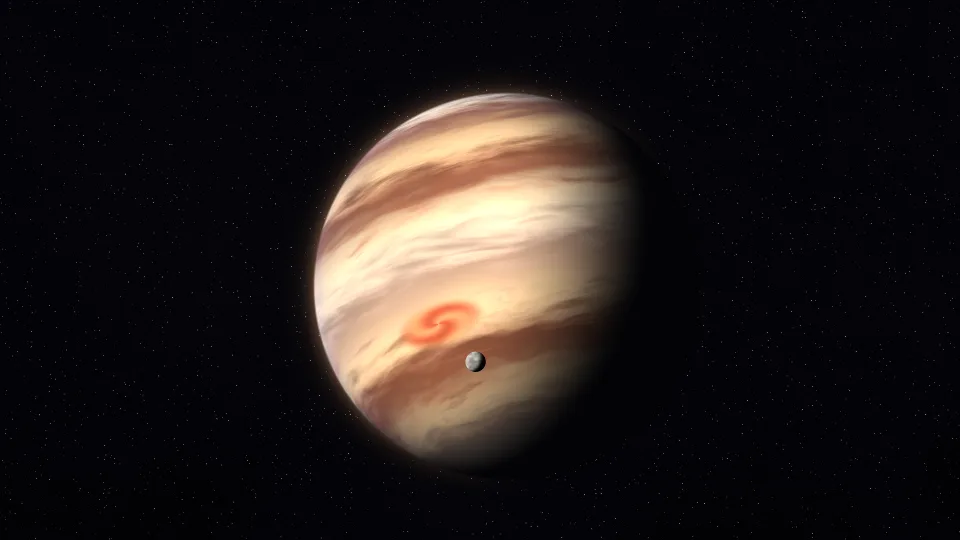
NewGas Giant
A banded giant planet turning slowly, with a small moon in orbit.
 New
NewLighthouse
A lighthouse sweeps its beam over a dark sea under the Milky Way.
 New
NewSlow Fireworks
Fireworks open in slow motion over dark water.
 New
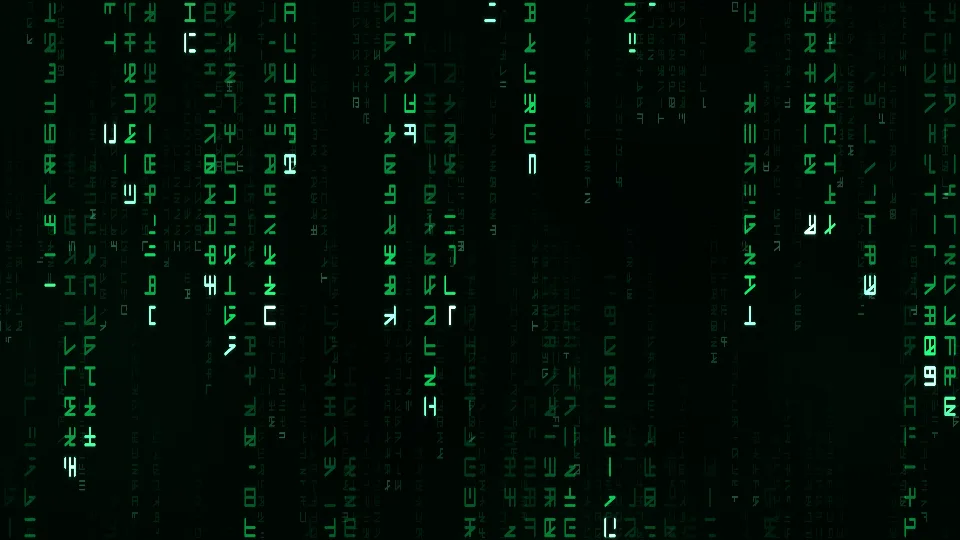
NewDigital Rain
Columns of glowing green symbols fall down a black screen.
 New
NewDream Gradient
Soft pastel colors melt into one another.
 New
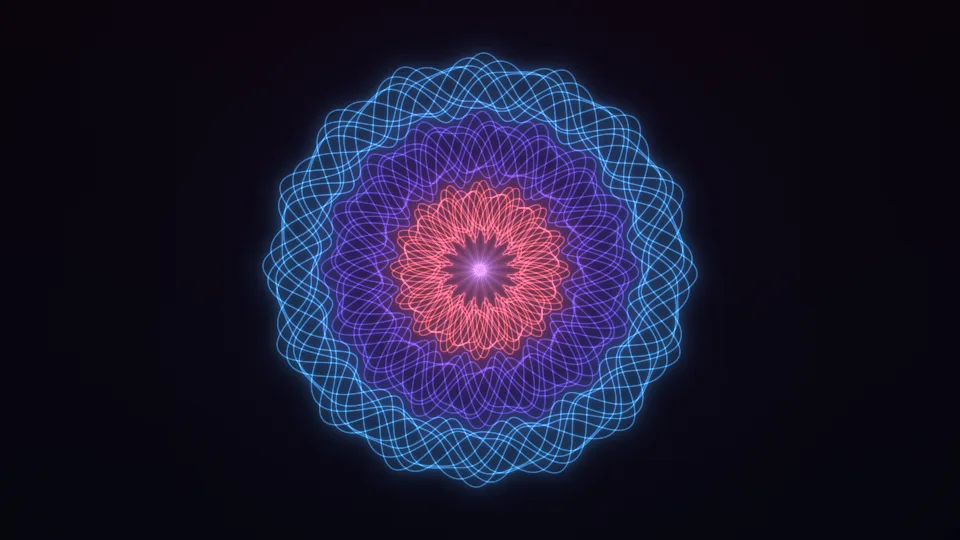
NewWoven Rosette
Fine glowing lines weave a slowly turning rosette.
 New
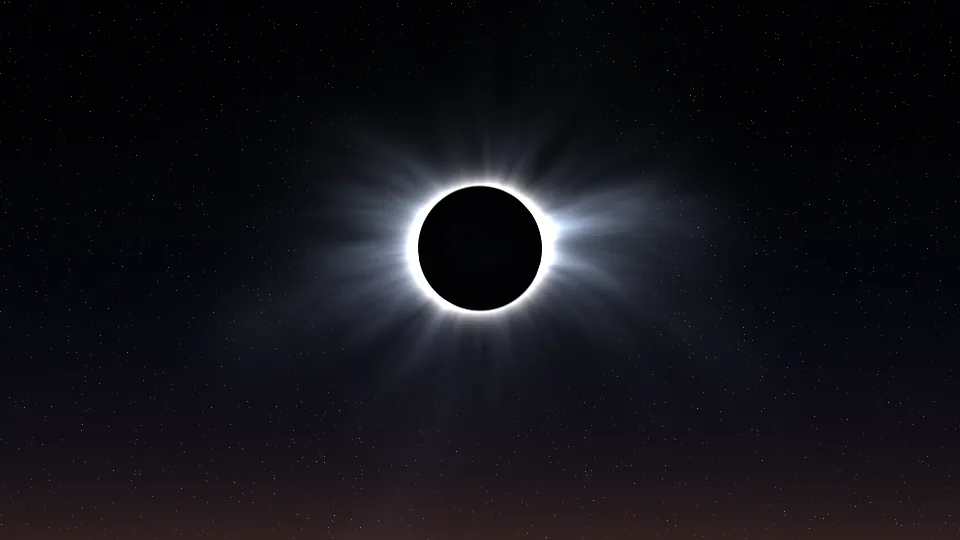
NewTotal Eclipse
The Sun's corona streams around a black Moon.
 New
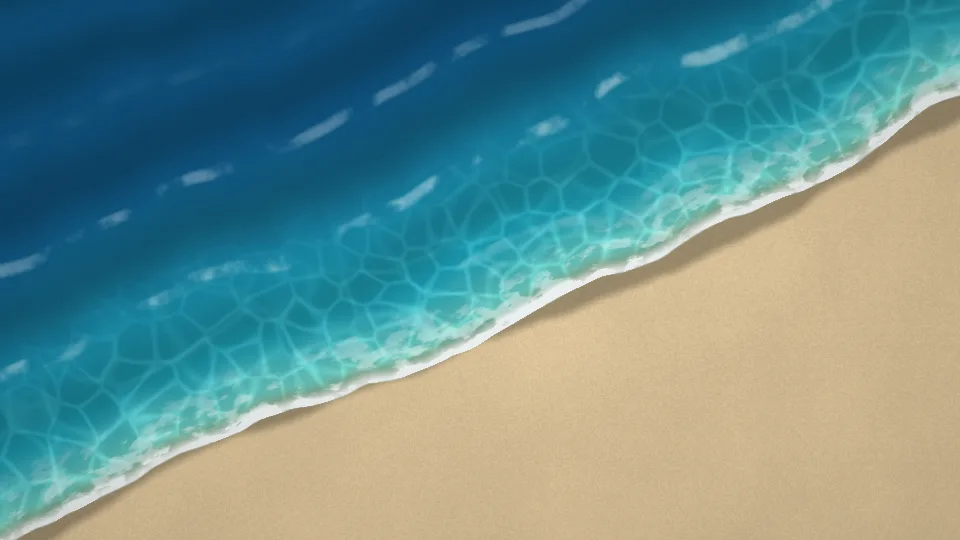
NewTide Line
Turquoise waves wash up a sandy beach, seen from above.
 New
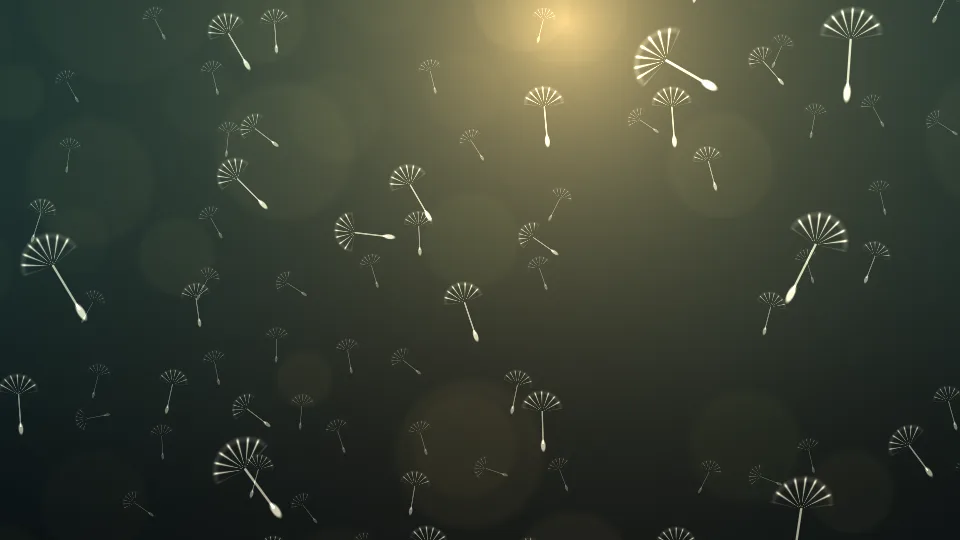
NewDandelion Seeds
Dandelion seeds float past in low evening light.
 New
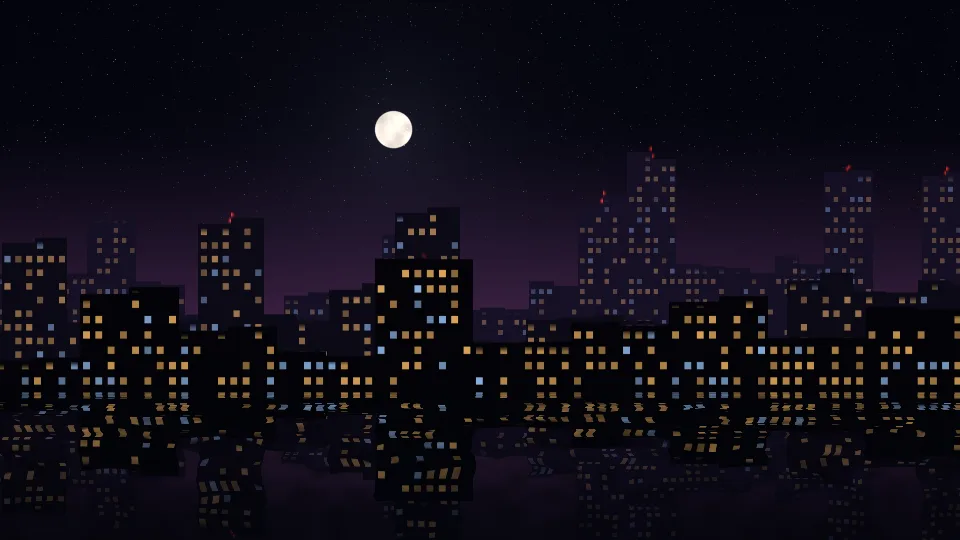
NewMidnight Skyline
A city skyline at night, its lit windows mirrored in the water.
 New
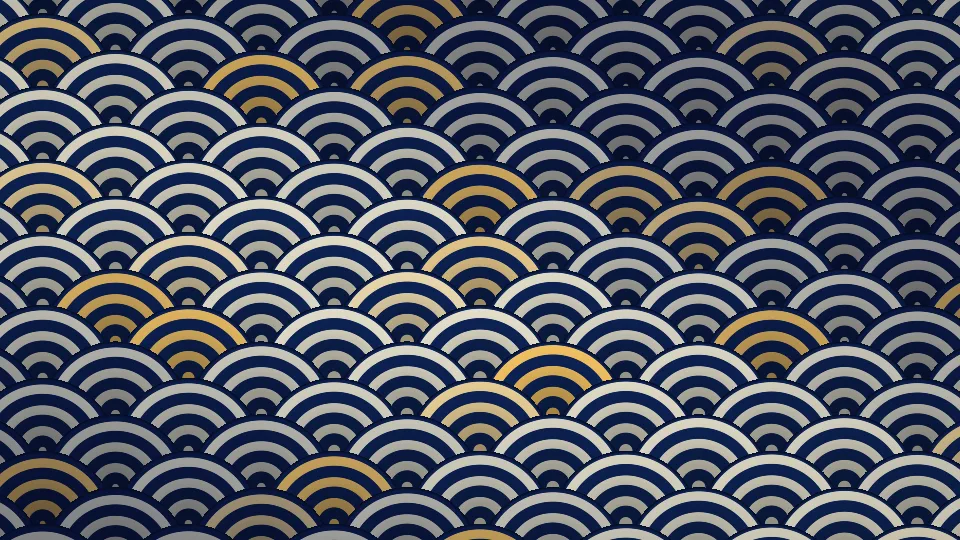
NewSeigaiha Waves
The Japanese wave pattern in indigo, cream, and gold.
 New
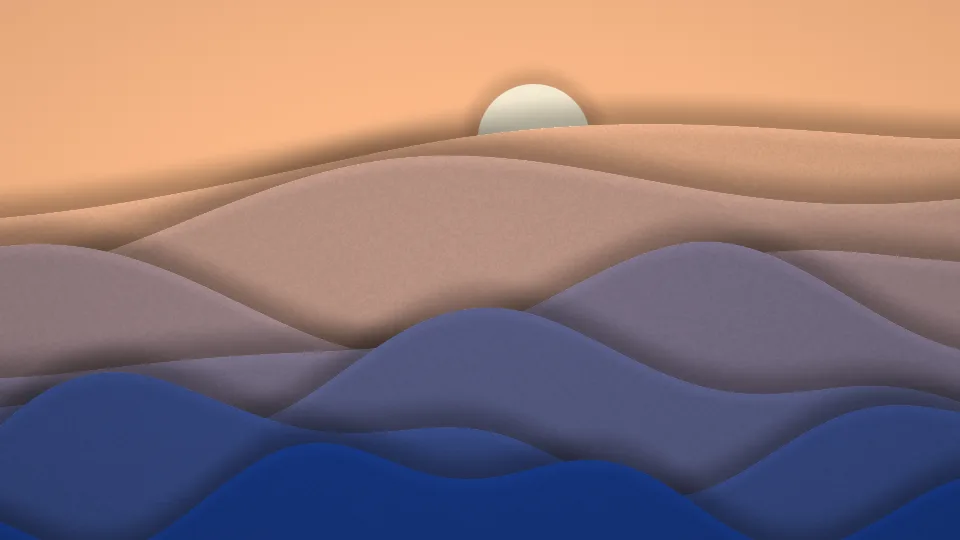
NewPaper Cut Hills
Layers of cut paper form rolling hills under a paper sun.
 New
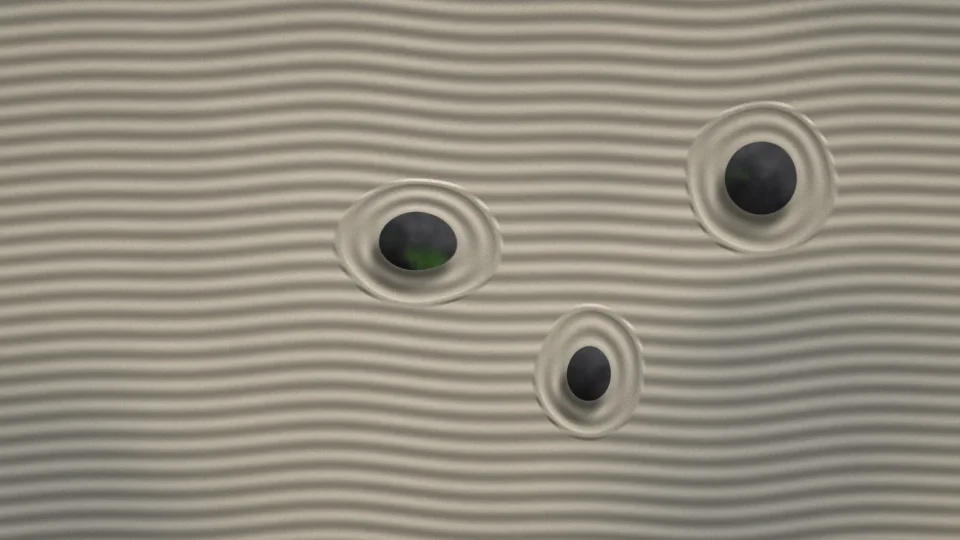
NewZen Garden
Raked sand circles three stones as the light slowly moves.

Fireplace
A log fire burning in a brick fireplace.

Planet Rise
Sunrise over the curved edge of a planet, seen from orbit.
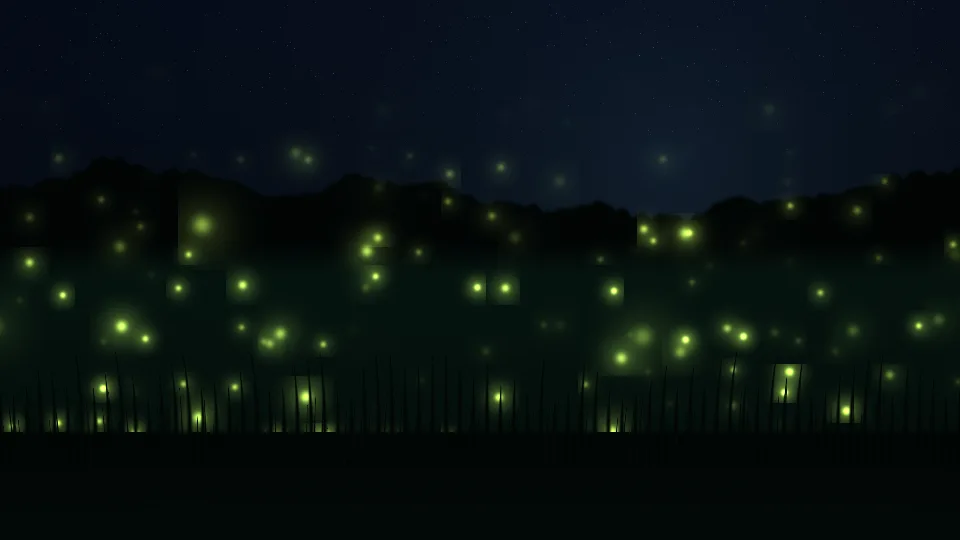
Firefly Meadow
Fireflies glowing and dimming over a night meadow.
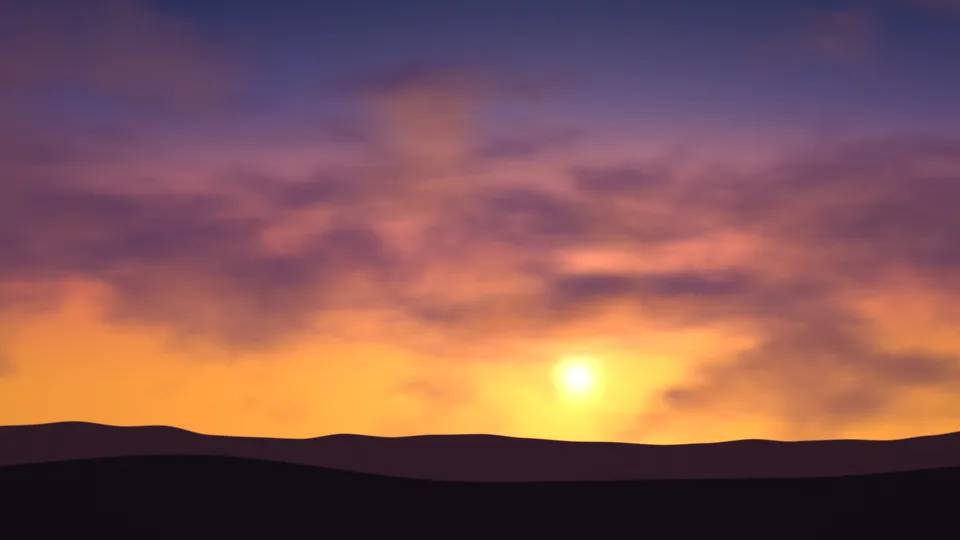
Golden Hour
A low sun and orange light under drifting purple clouds.

Rain on the Pond
Raindrops spreading rings across a dark pond.
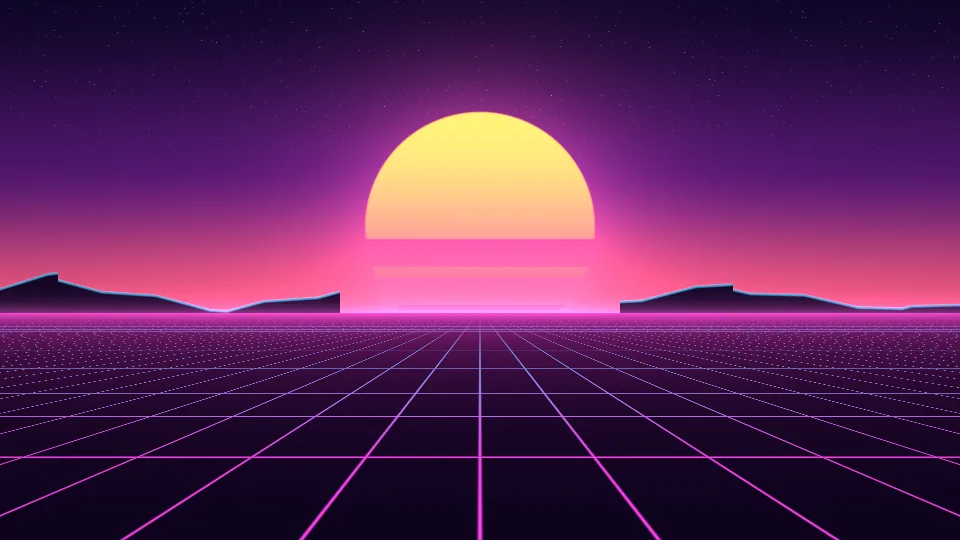
Synthwave Sunset
A striped sun, neon mountains, and a glowing grid.
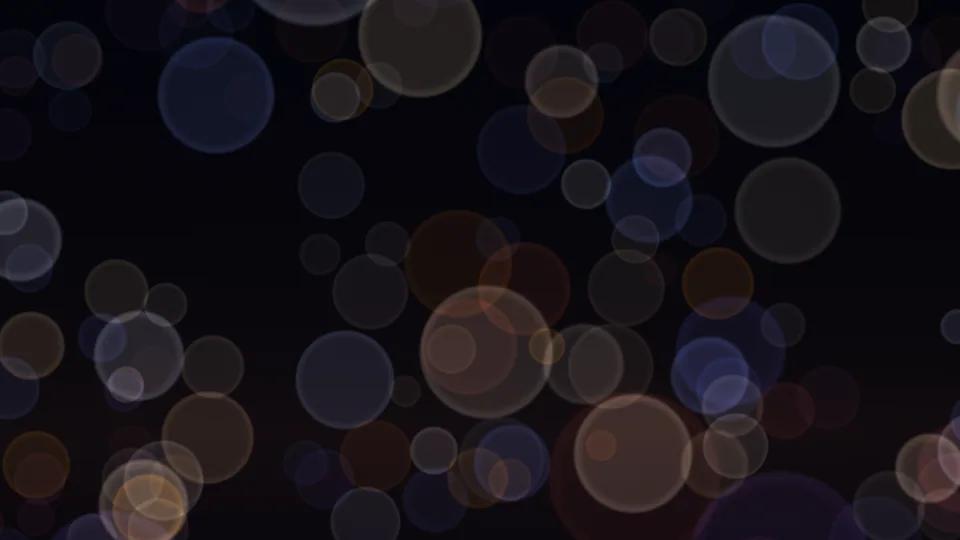
City Bokeh
Out-of-focus city lights in gold, pink, and blue.
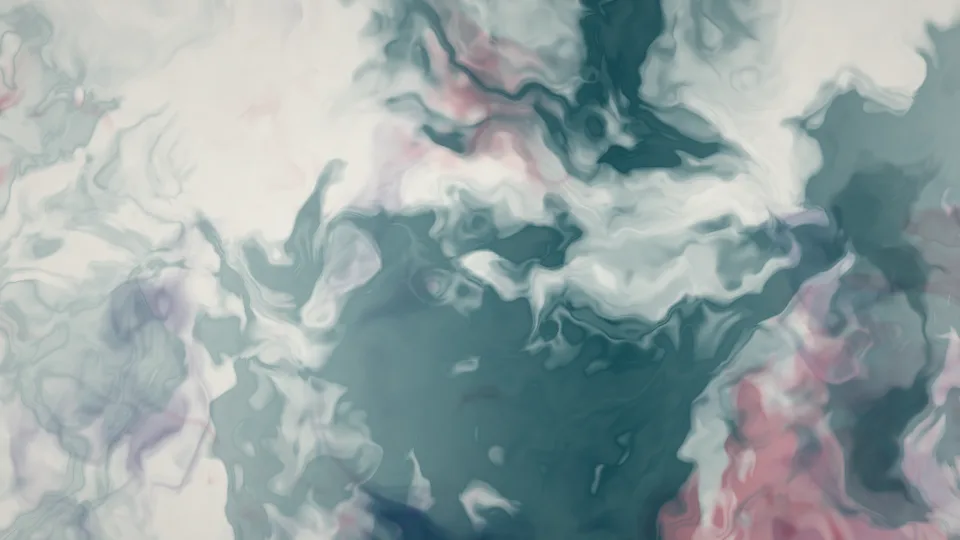
Ink in Water
Teal, indigo, and crimson ink unfurling in clear water.
Kaleidoscope
A mirrored pattern of jewel colors, always rearranging.

Candlelight
One candle flame, leaning and steadying in the dark.
Meteor Shower
Shooting stars crossing a clear night sky.
Campfire Embers
Orange sparks rising from a fire into the dark.

Sea of Clouds
Sunrise over a blanket of cloud, seen from above.

Desert Dunes
Layers of sand dunes under a hazy sun.
Starfield Warp
Stars streaming out from the center at an easy pace.

Light Leaks
Warm washes of orange and rose light with a little grain.
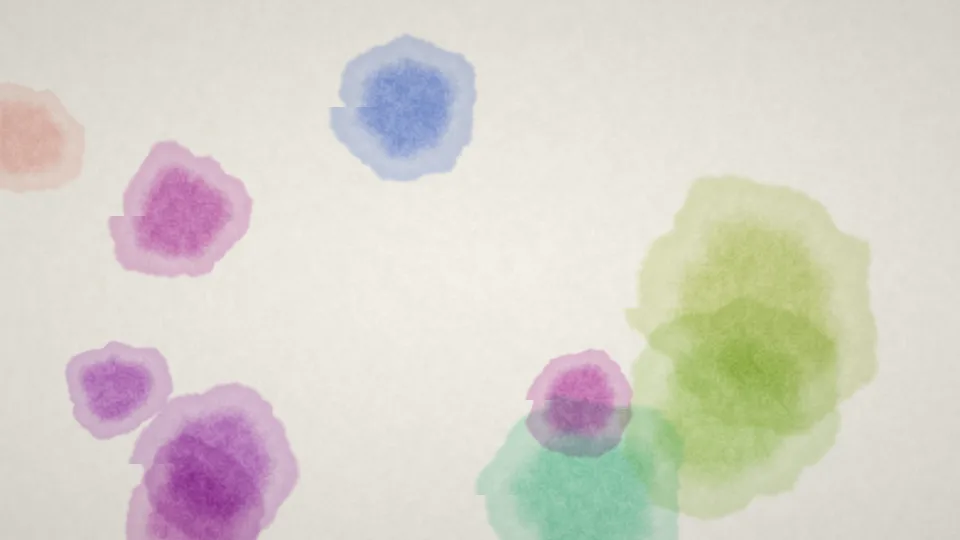
Watercolor Bloom
Blots of watercolor spreading on textured white paper.
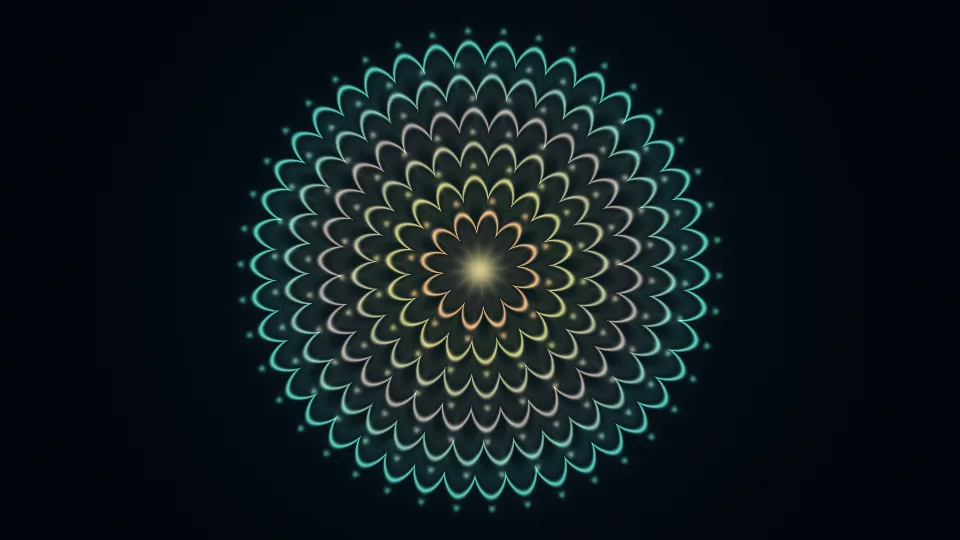
Mandala Breath
Gold and teal rings of petals, swelling and settling.
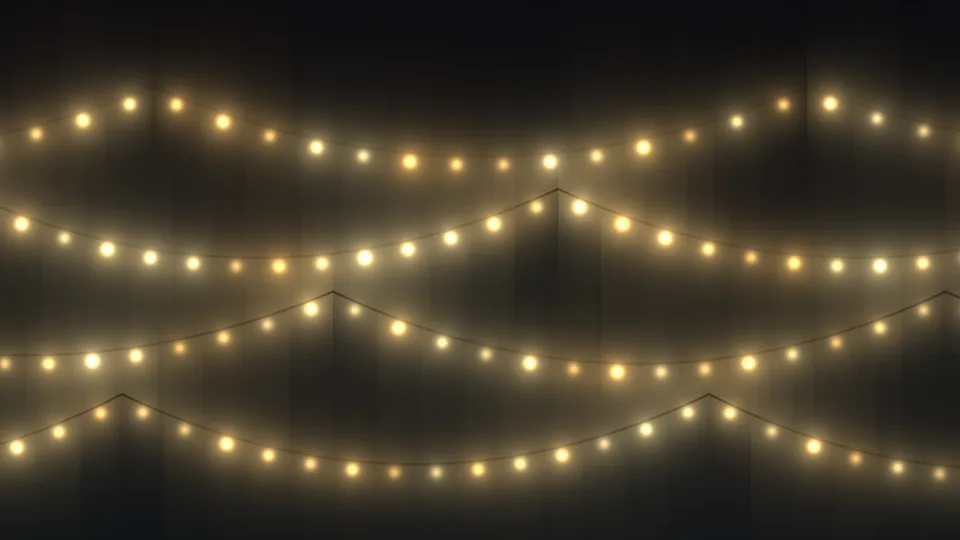
Fairy Lights
Strings of warm bulbs, gently brightening and dimming.
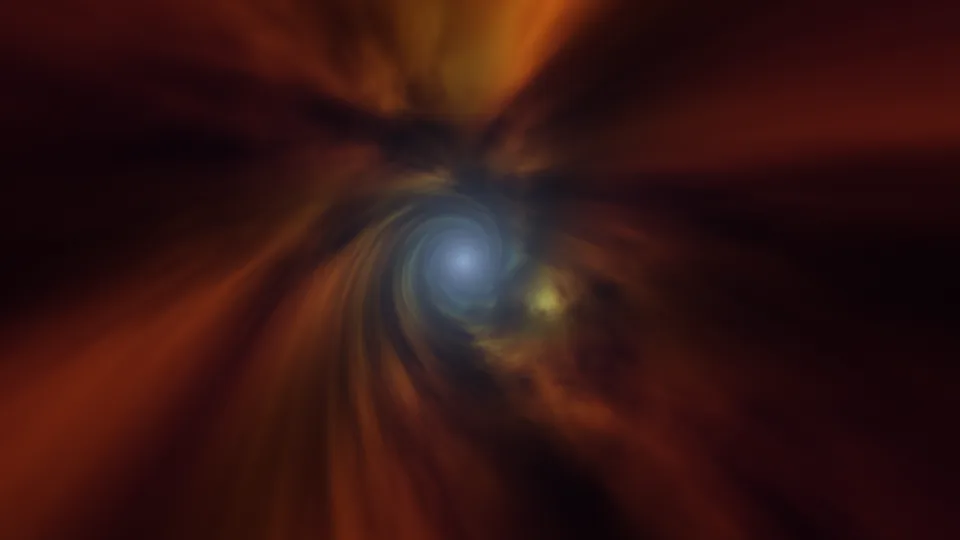
Wormhole
A slow flight down a swirling tunnel of colored gas.

Quiet Snowfall
Soft snow falling at dusk over snow-covered pines.

Cotton Candy Sky
Soft pink, peach, and lavender haze, slowly folding.
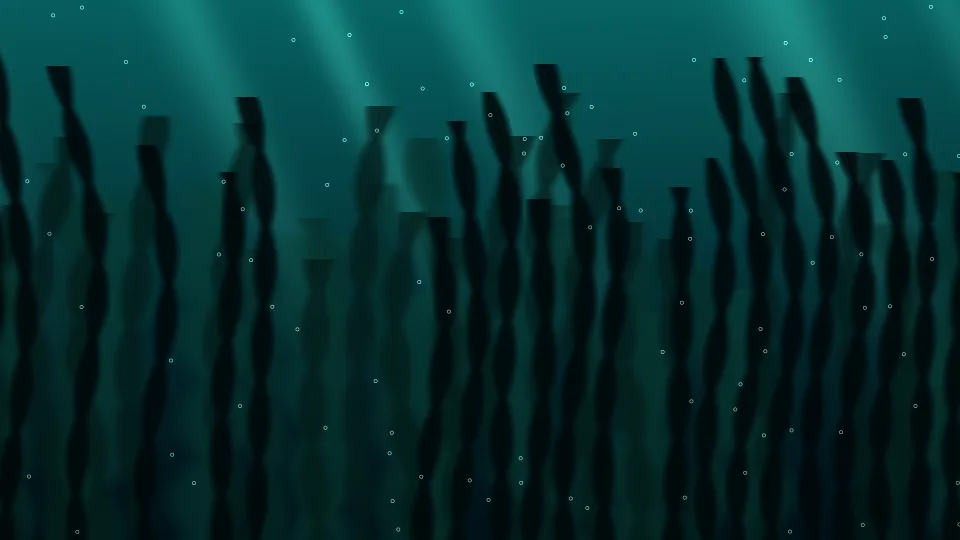
Kelp Forest
Tall kelp swaying in green-blue, sunlit water.
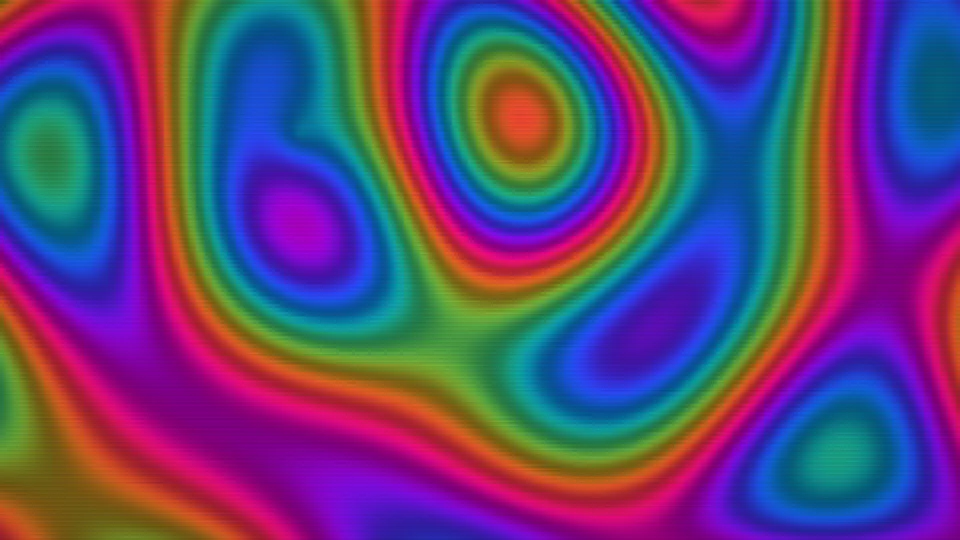
Retro Plasma
Blocky blobs of saturated color from old computer demos.
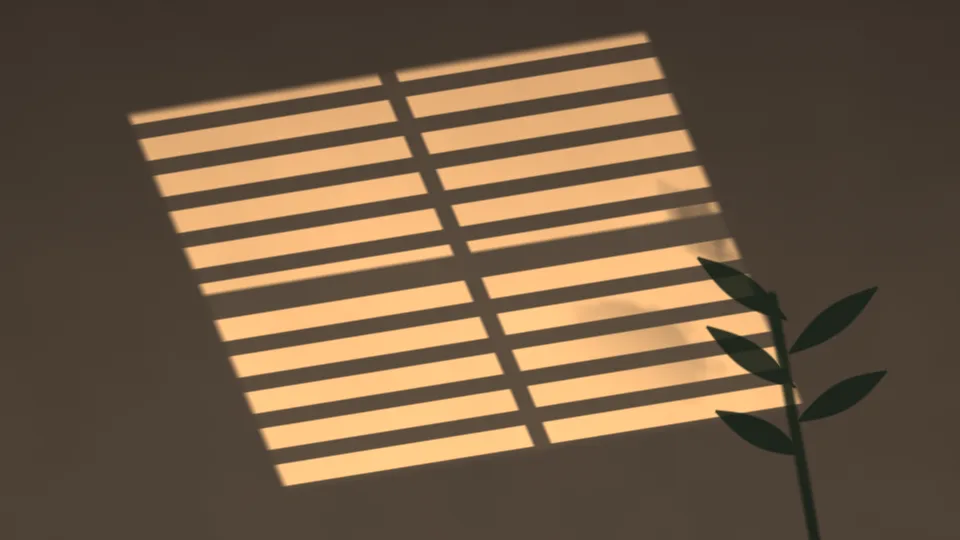
Window Light
Afternoon sun through blinds, striped across a wall.
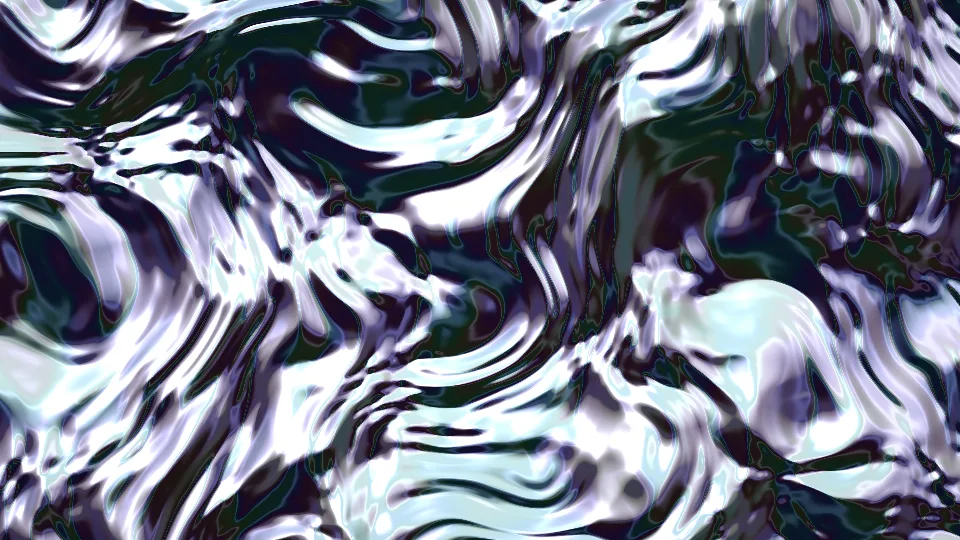
Liquid Chrome
Liquid metal rippling with bright white highlights.
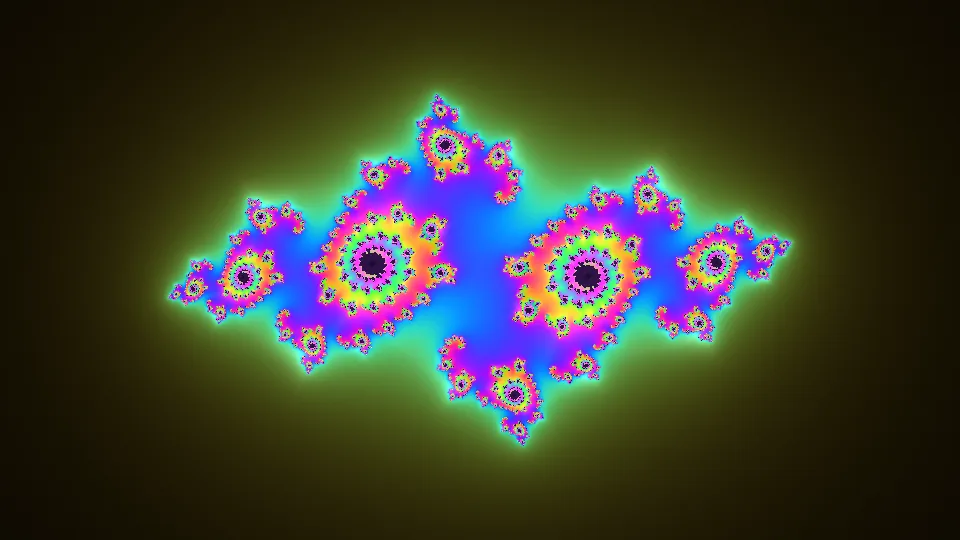
Julia Bloom
A Julia set fractal that keeps changing shape.
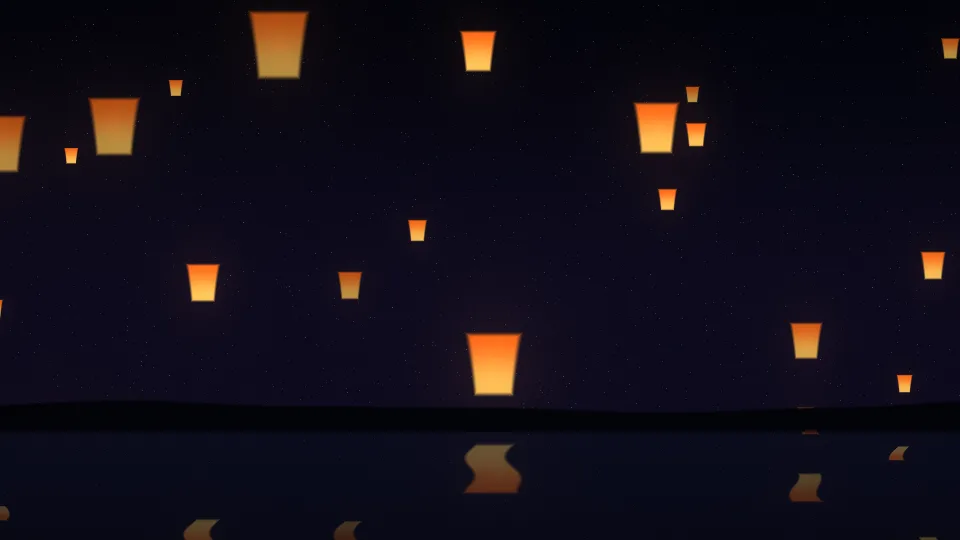
Lantern Festival
Paper lanterns rising into the night above still water.

Comet
A bright comet with a blue ion tail and a golden dust tail.

Cherry Blossom Drift
Pink petals tumbling across a pale spring sky.
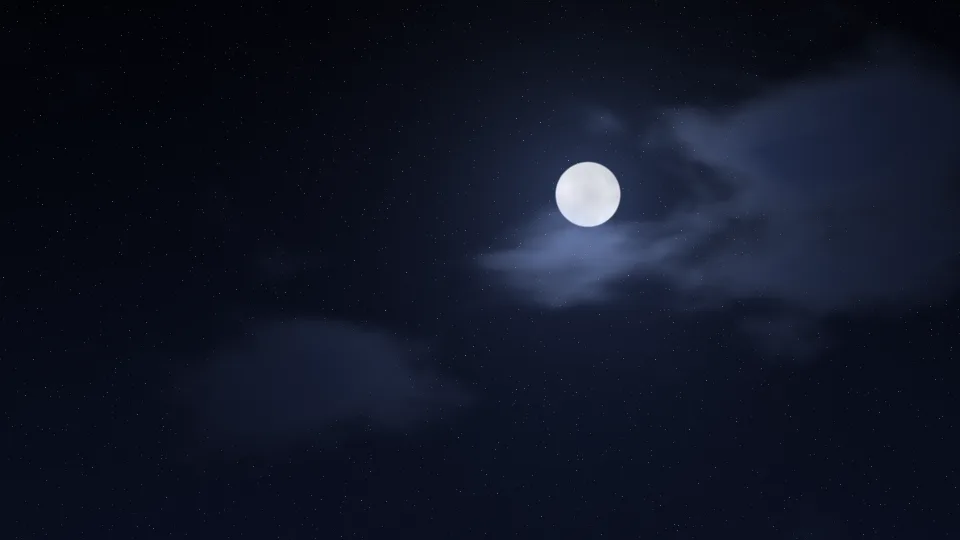
Moonlit Clouds
A full moon behind drifting, silver-edged clouds.
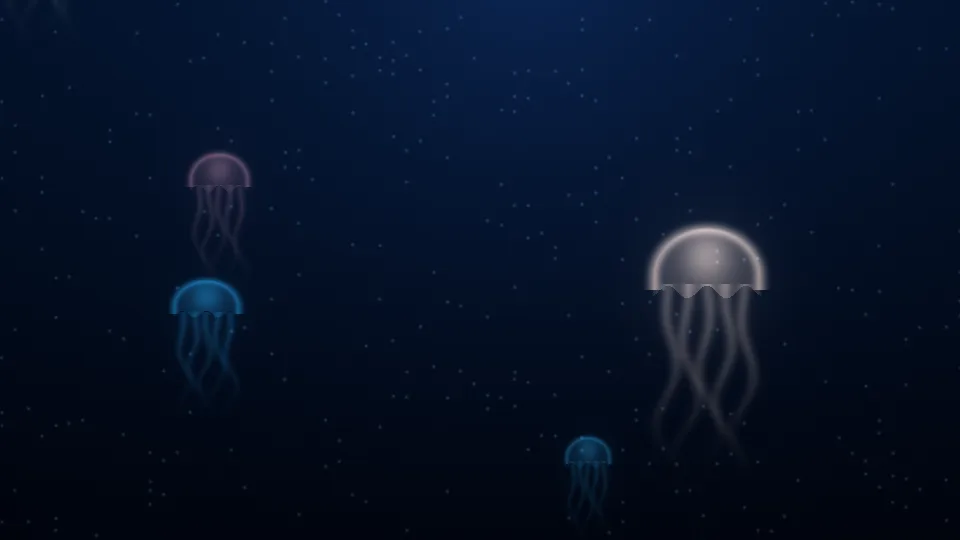
Jellyfish Drift
Glowing jellyfish pulsing upward through deep blue water.
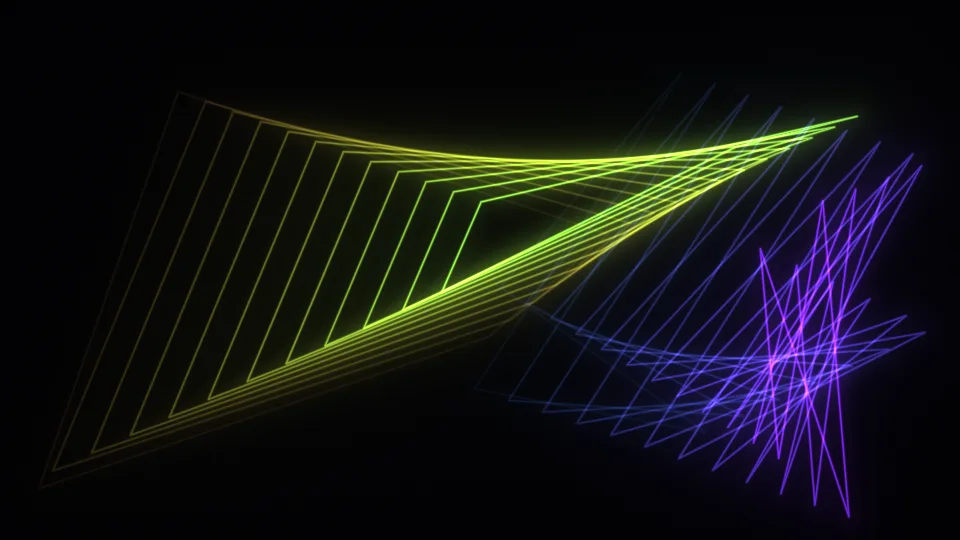
Mystify
Two glowing polygons bouncing and leaving fading trails.
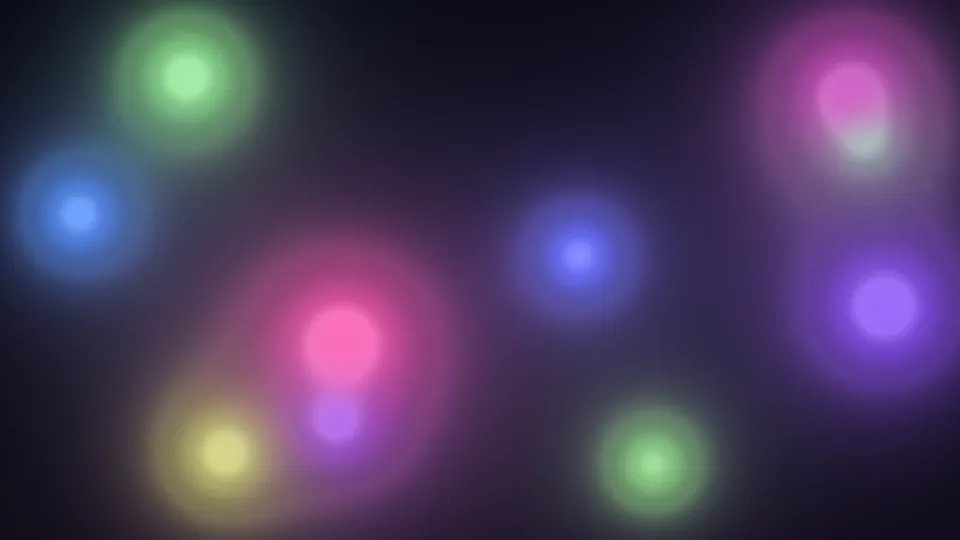
Soft Orbs
Balls of colored light drifting and merging in the dark.
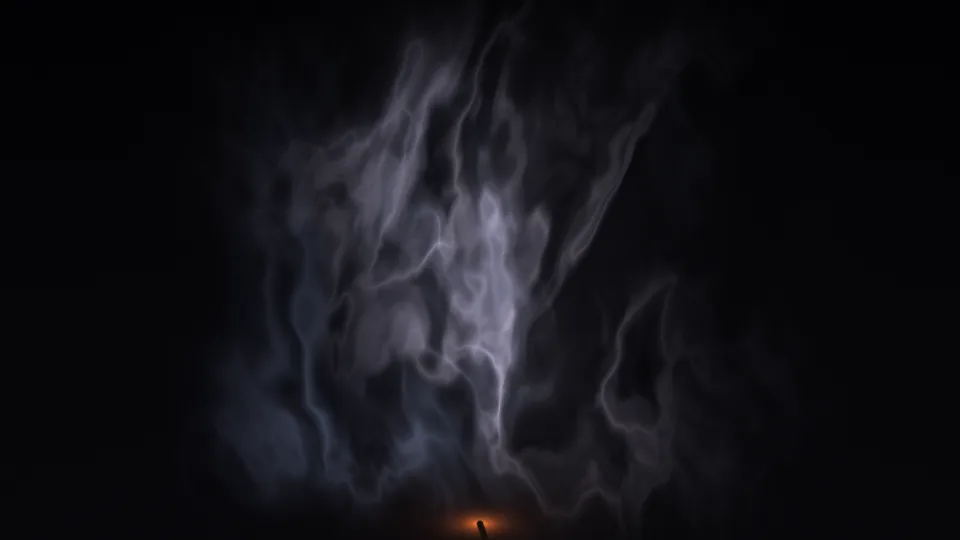
Smoke Wisps
Thin incense smoke curling into ribbons in the dark.
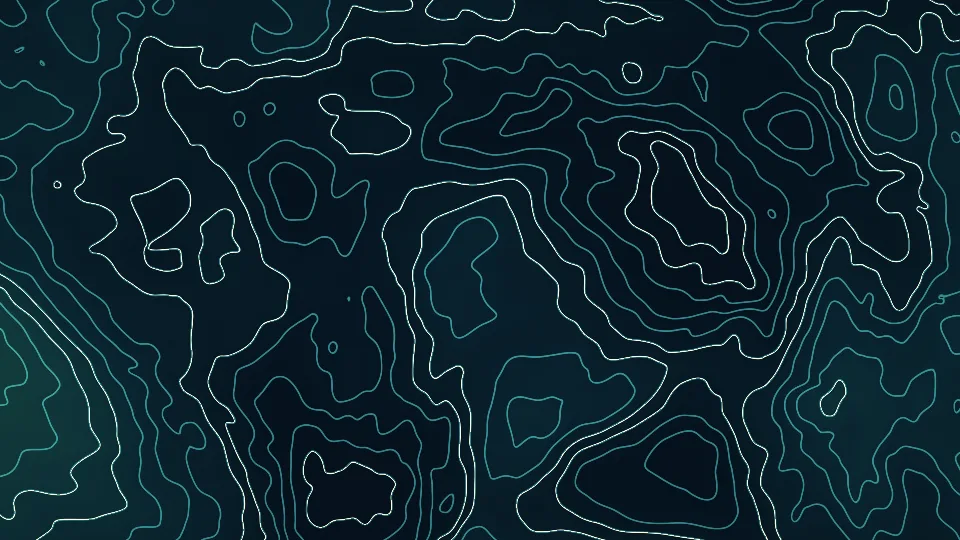
Contour Lines
A slowly changing map of fine teal contour lines.
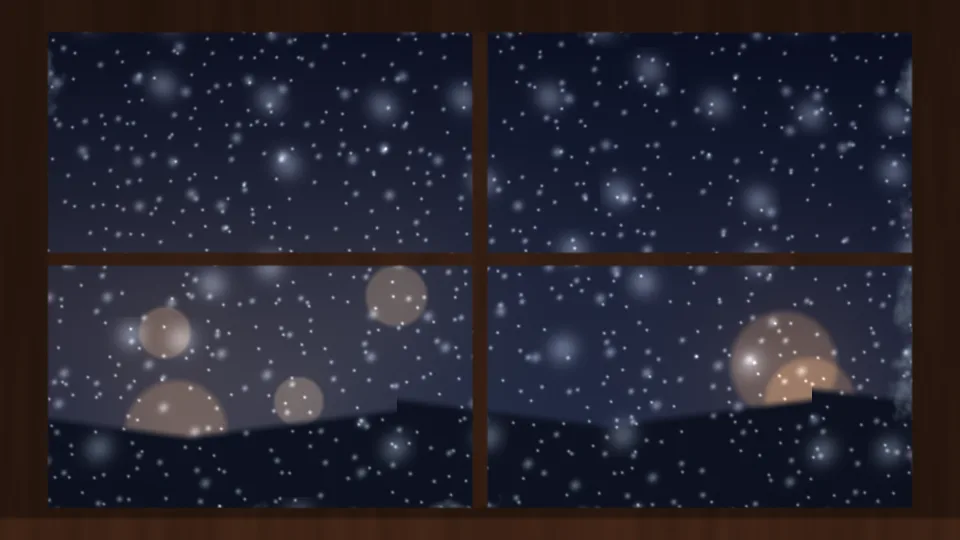
Snowy Window
Snow and warm street lights beyond a frosted window.
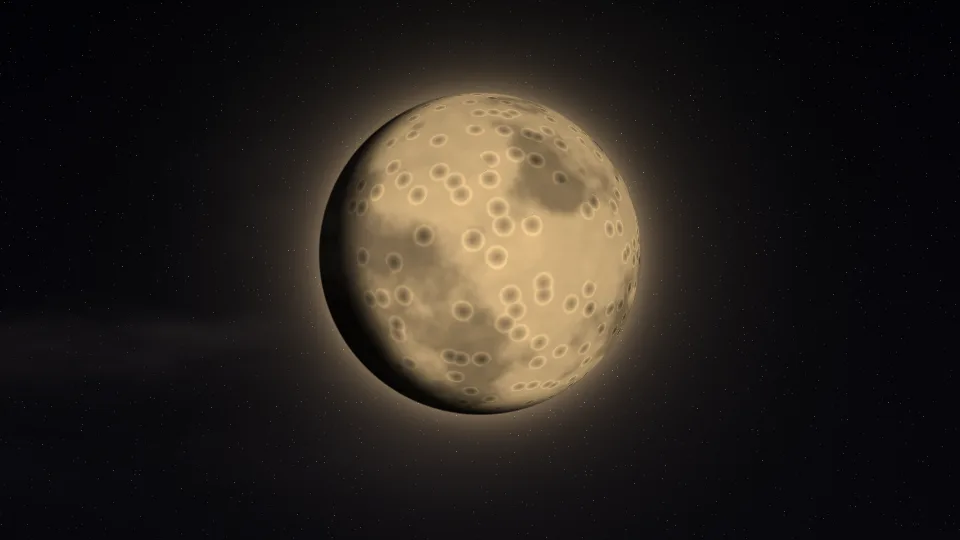
Harvest Moon
A large golden moon whose phase slowly changes.

Autumn Leaves
Red and gold leaves spinning down through amber light.
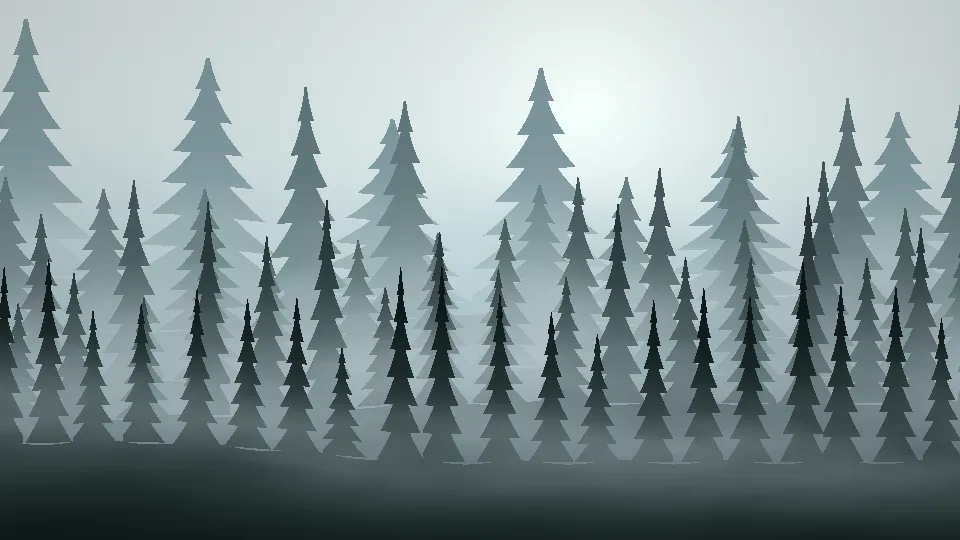
Pine Fog
Rows of pines fading into pale morning fog.
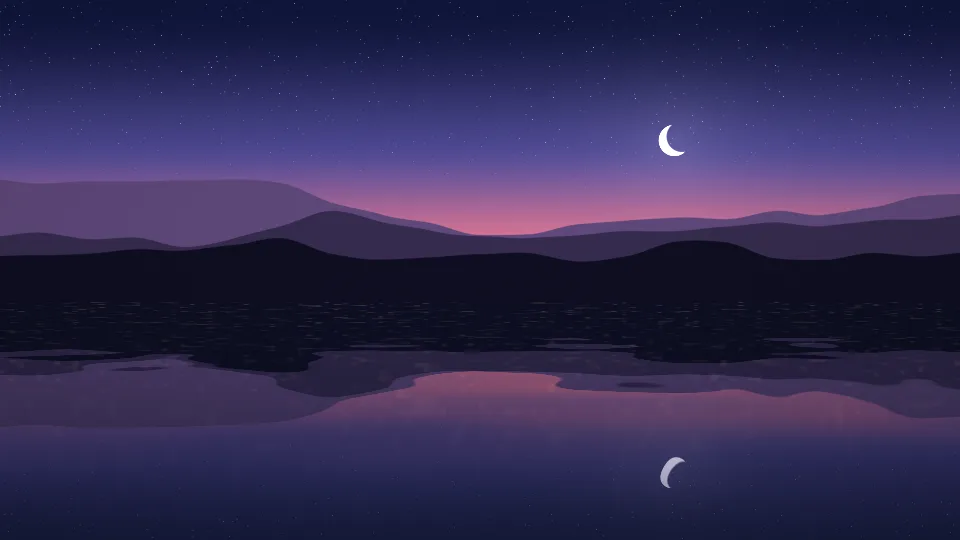
Lake at Dusk
Mountains and a crescent moon mirrored in a still lake.

Oscilloscope
A green trace looping through Lissajous figures.
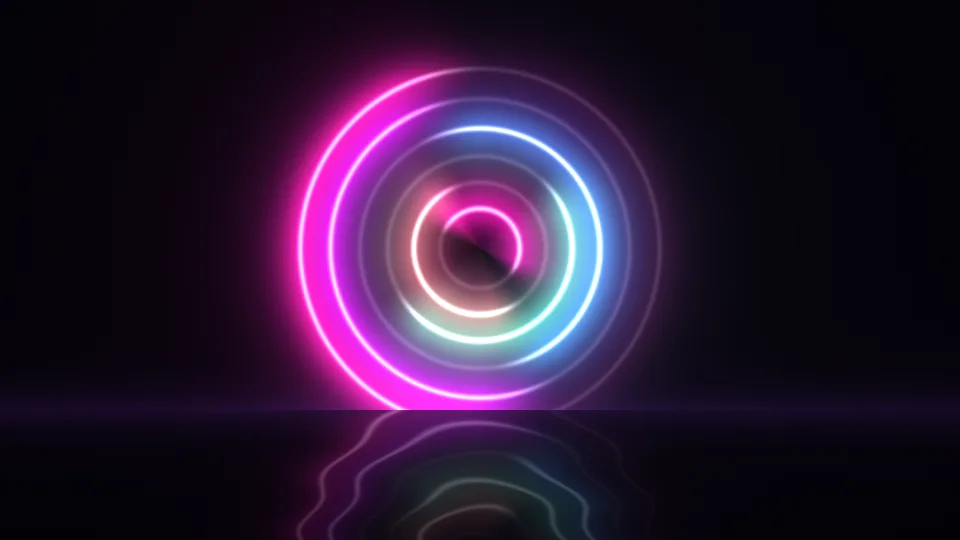
Neon Halo
Neon rings turning above a dark, glossy floor.
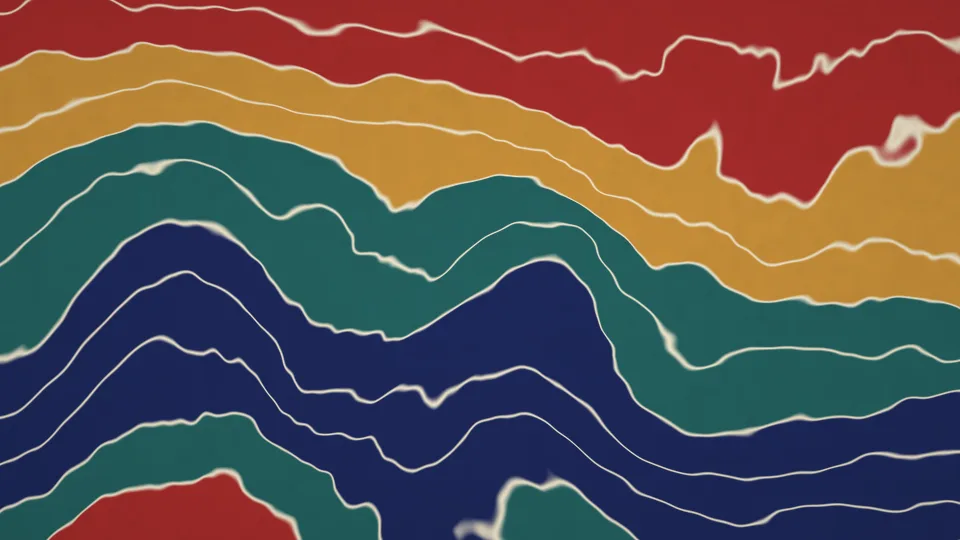
Paper Marbling
Bands of indigo, ochre, and crimson pulled into waves.
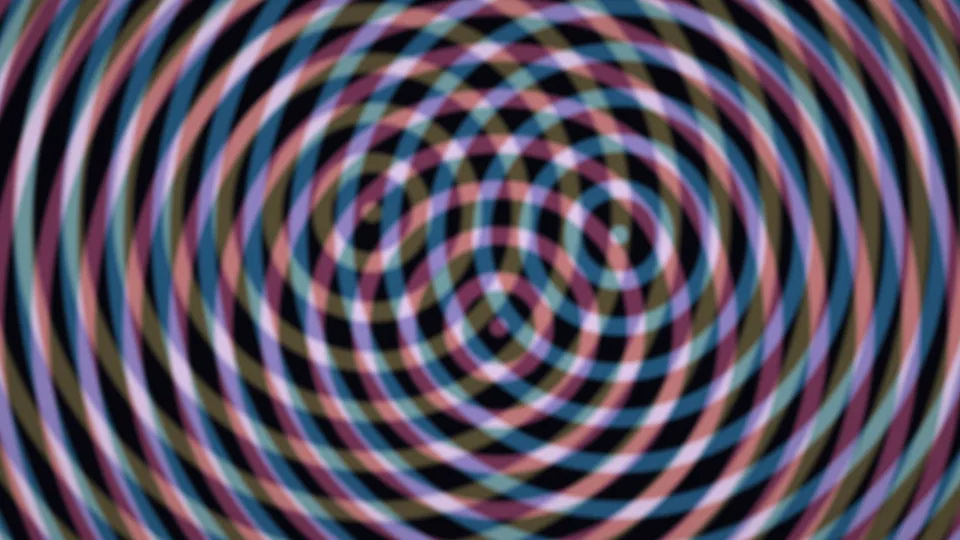
Moiré Rings
Three sets of rings sliding into moiré patterns.
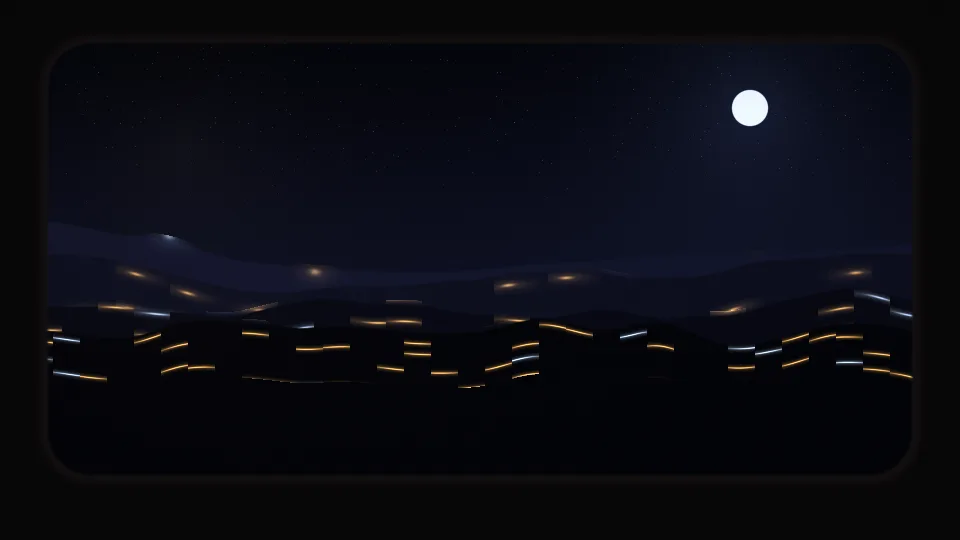
Night Train
Dark hills and distant lights passing a train window.
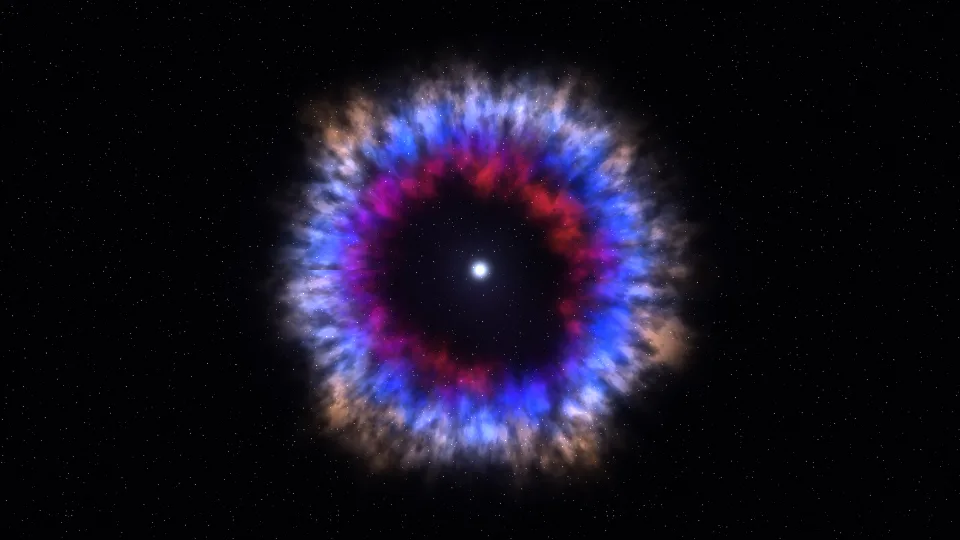
Supernova Remnant
Rings of blue, red, and gold gas around a small white star.
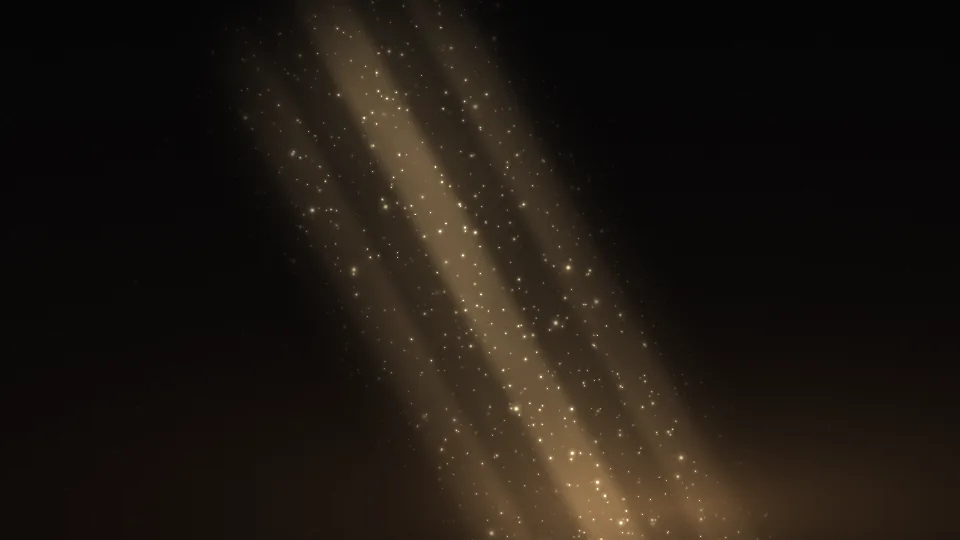
Sunbeam Dust
Dust motes glinting in a shaft of sunlight.

Balloon Dawn
Striped hot air balloons drifting across a dawn sky.
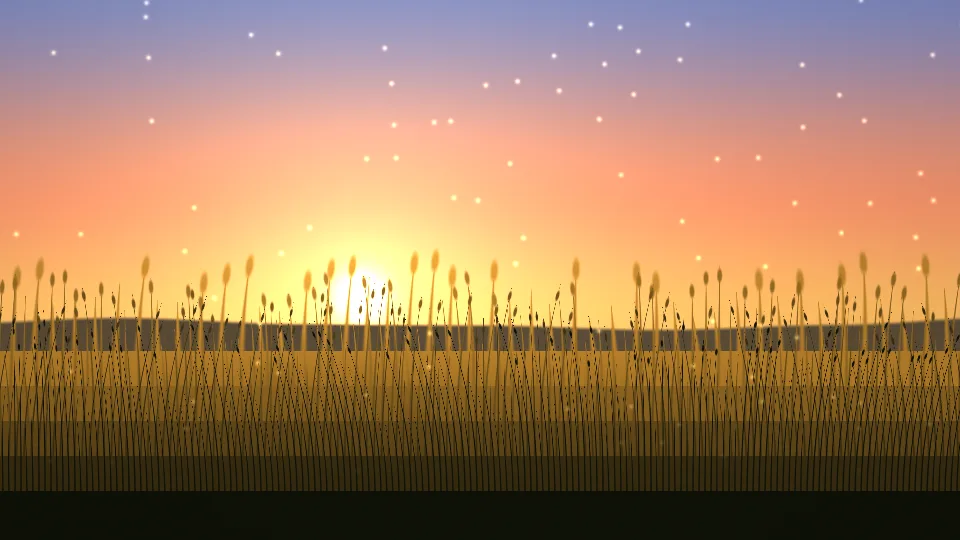
Summer Meadow
Golden grass swaying in a warm evening breeze.
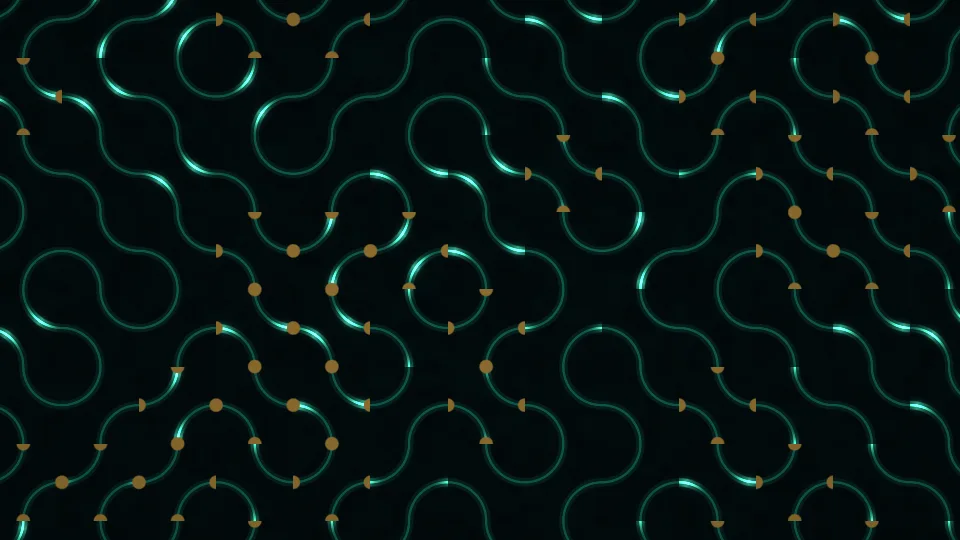
Circuit Glow
Pulses of light running along circuit board tracks.
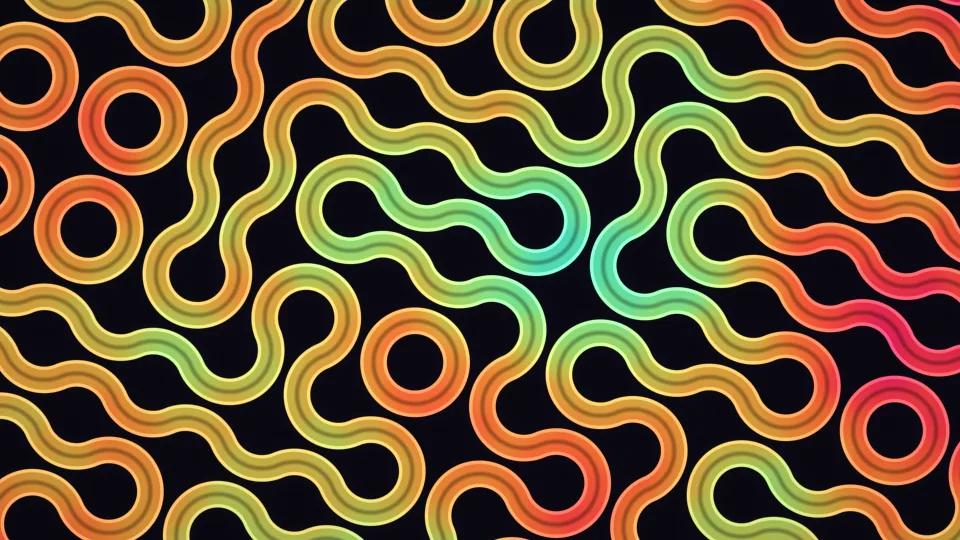
Truchet Weave
Rounded ribbons of color winding through loops and curves.
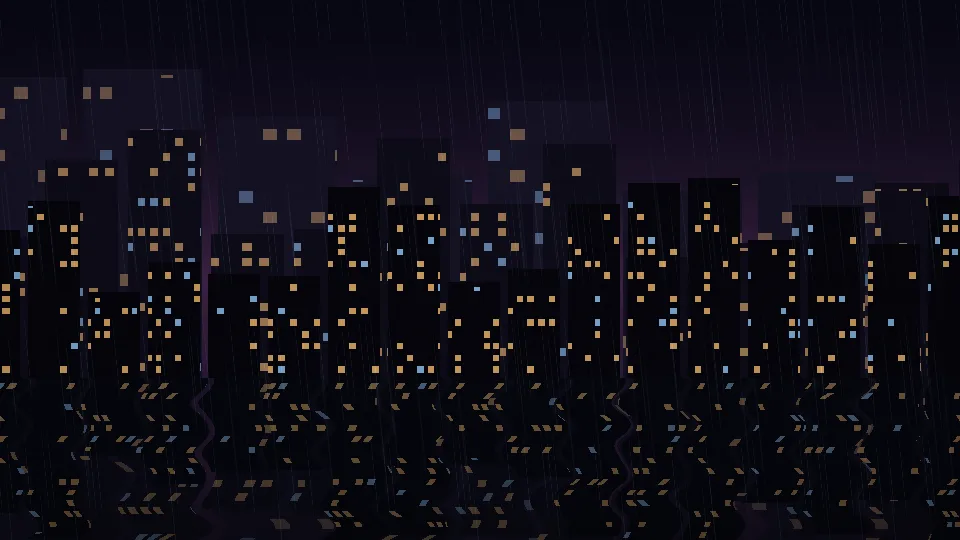
Rainy City Night
A lit skyline reflected in wet ground on a rainy night.

Star Cluster
Thousands of stars gathered around a bright center.

Soap Bubbles
Rainbow-rimmed bubbles rising against a blue sky.
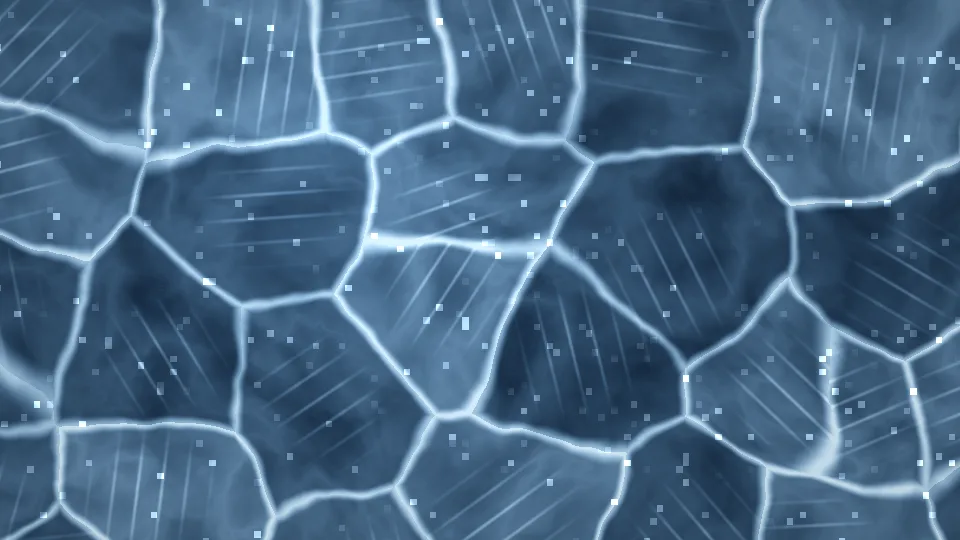
Frozen Lake
Thick blue ice, pale cracks, and glinting frost.
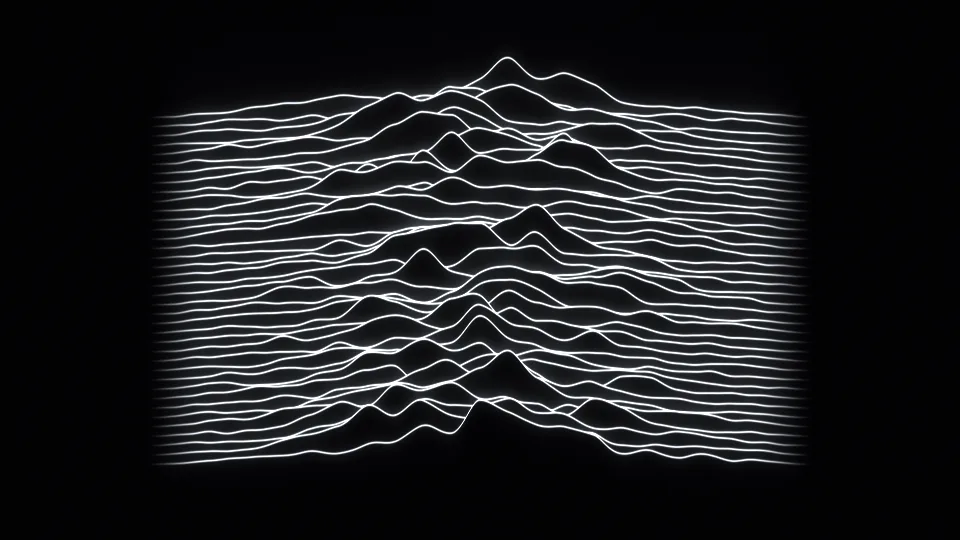
Radio Waves
Stacked white lines rising into peaks like a mountain range.
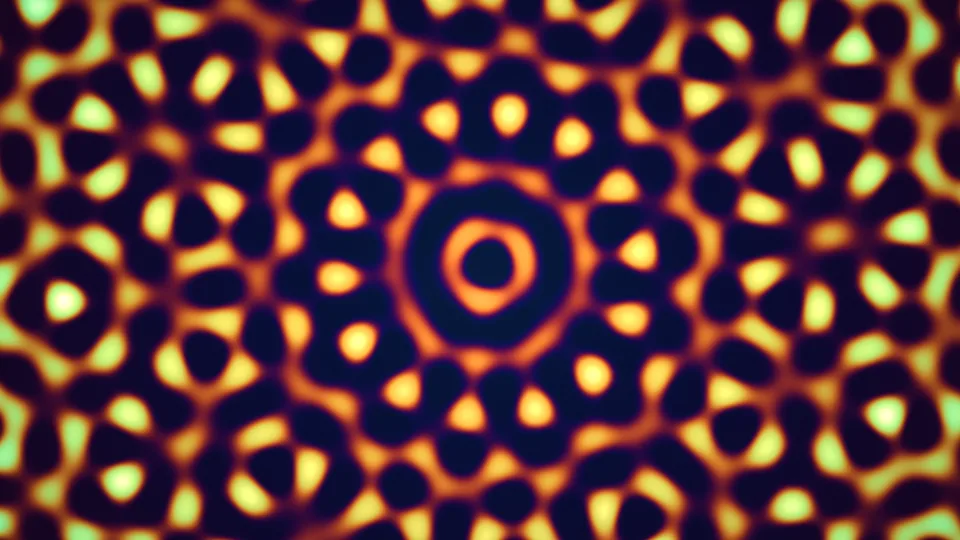
Quasicrystal
A glowing pattern with symmetry that never quite repeats.
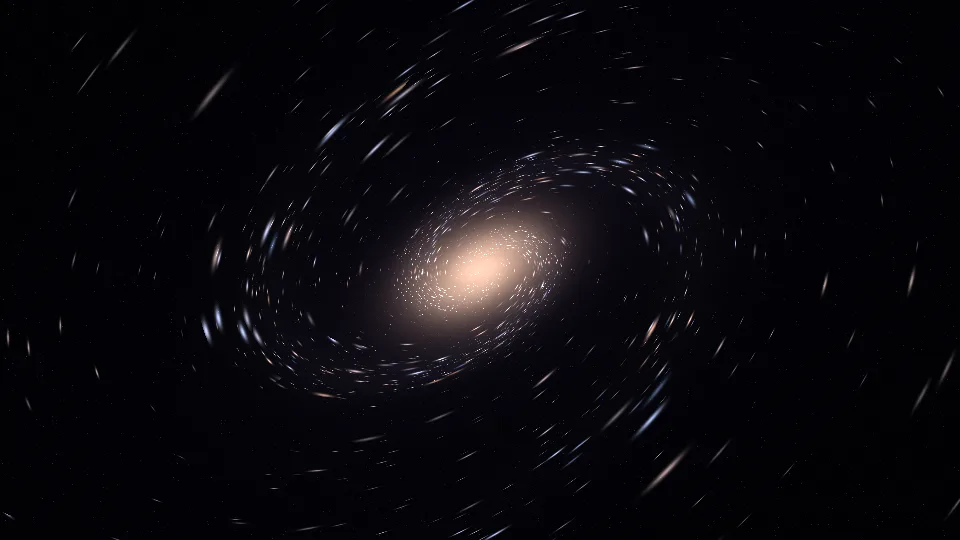
Stardust Spiral
A tilted spiral galaxy made of points of light.
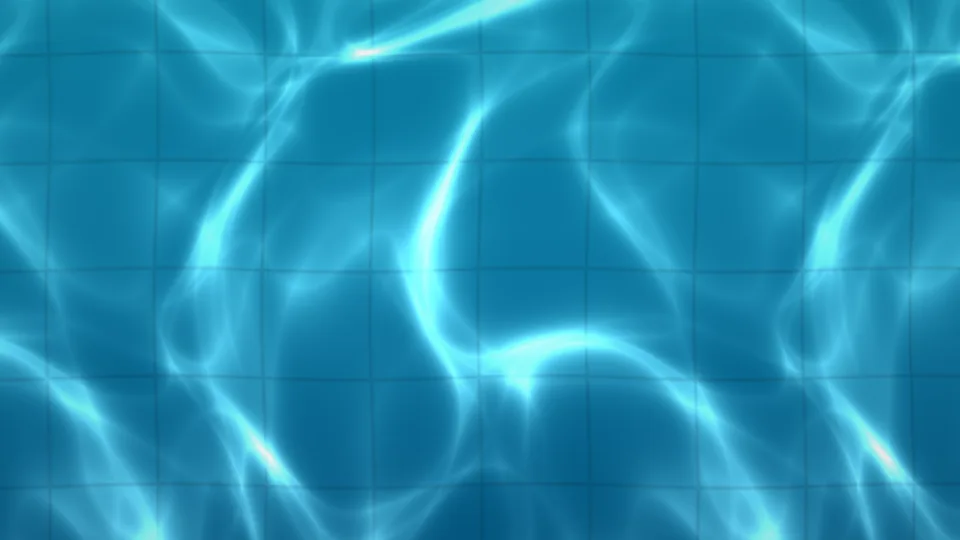
Pool Caustics
Nets of sunlight wobbling over turquoise pool tiles.
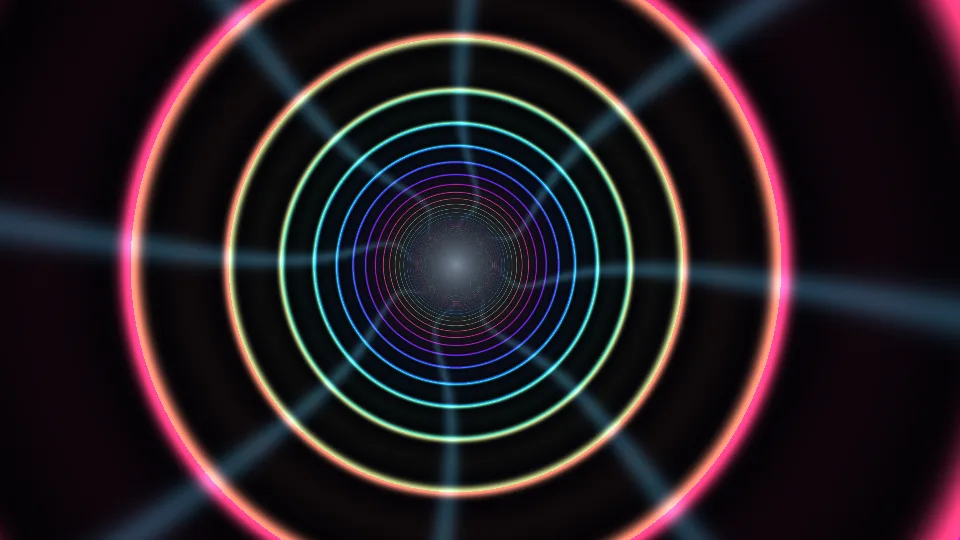
Light Tunnel
A glide down a tunnel of color-changing neon rings.

Glowing Tide
Small waves lighting up electric blue on a night beach.
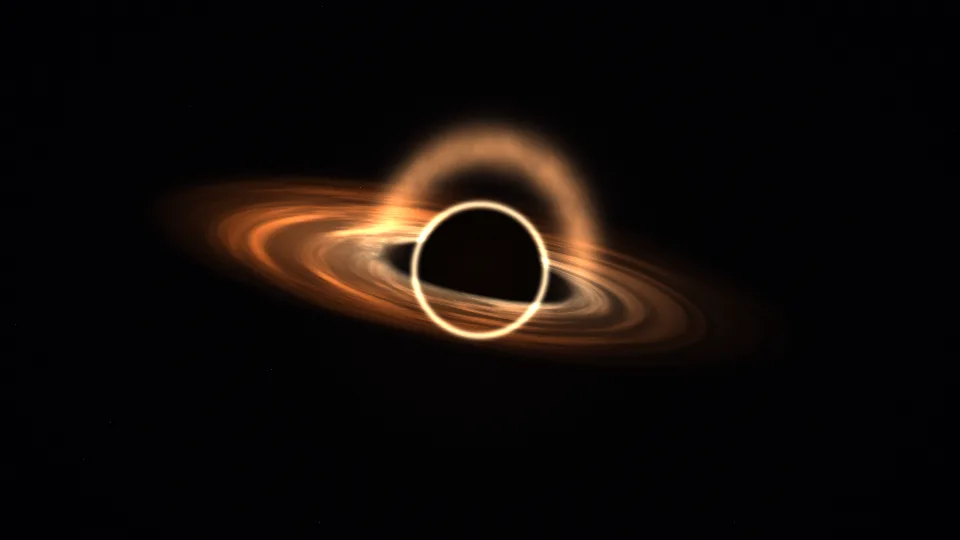
Event Horizon
A black hole bending the light of its own disk.
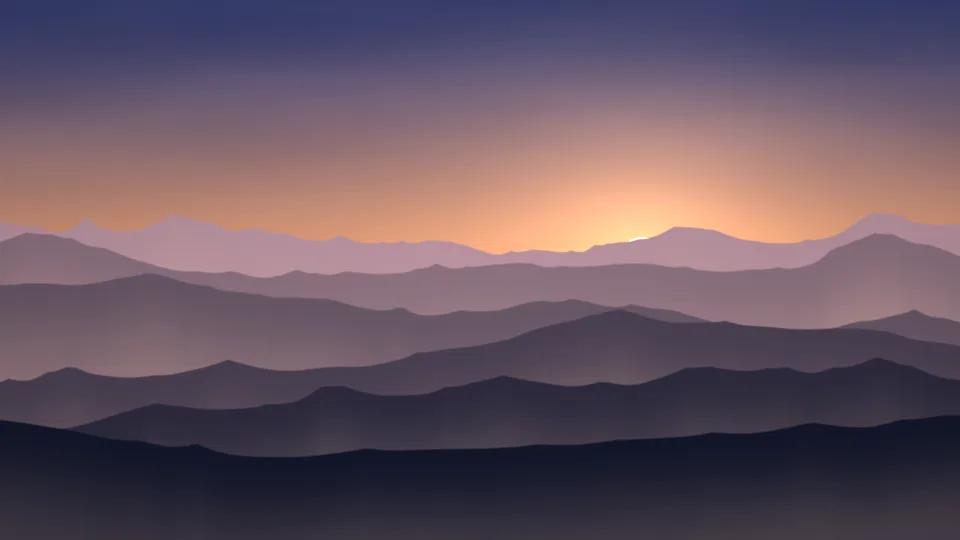
Misty Peaks
Mountain ridges fading into dawn mist.
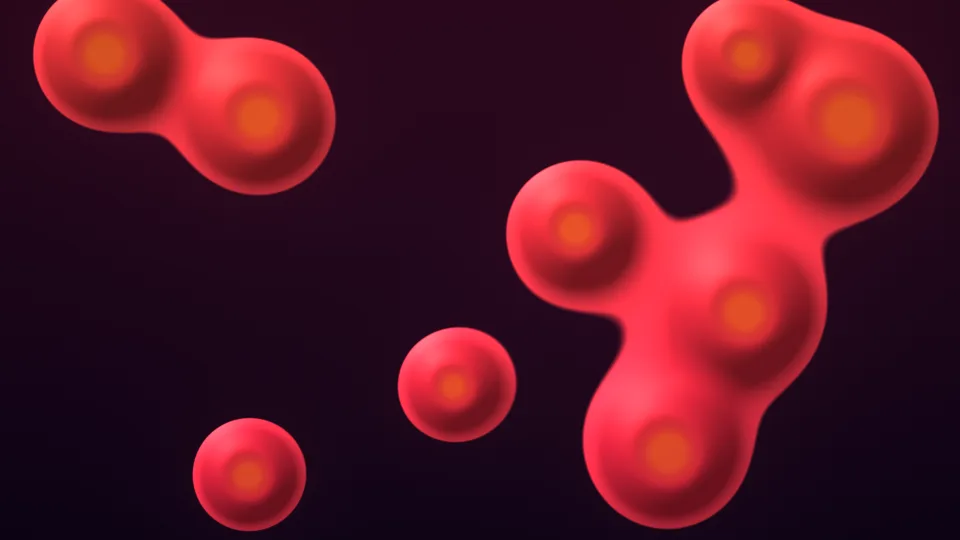
Lava Lamp
Warm wax rising, merging, and drifting apart.
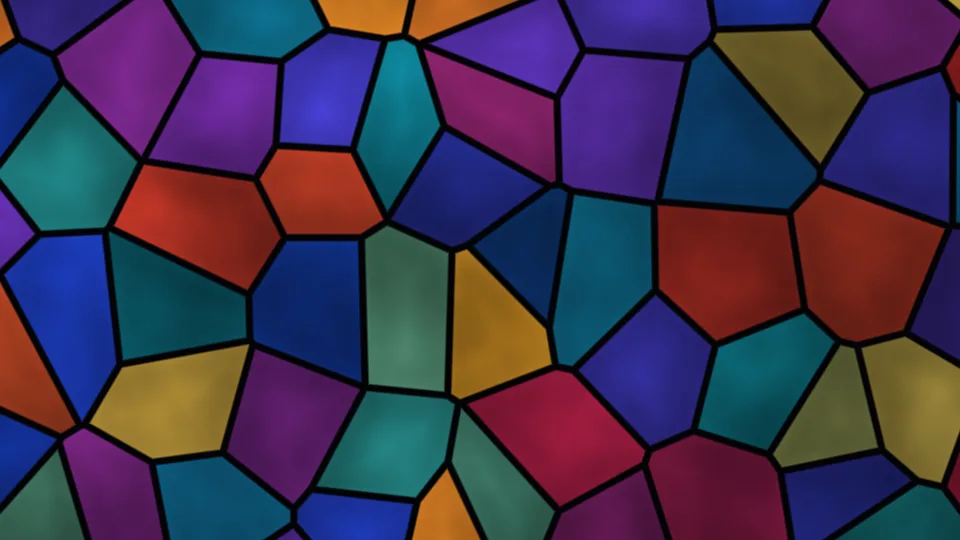
Stained Glass
Jewel-colored panes with light moving behind them.
Solar Corona
The Sun up close, wrapped in slow streamers.

Sunlit Deep
Shafts of sunlight reaching into blue water.
Oil & Water
An iridescent film curling across dark water.
Honeycomb Pulse
Waves of light crossing a glowing comb.
Northern Lights
Luminous curtains above a still horizon.
Silk Flow
Iridescent fabric, caught in a gentle current.
Velvet Nebula
Rose and indigo clouds drifting among stars.
Prism Bloom
Petals of light unfolding in perfect symmetry.
Star Nest
A slow journey through a field of stars.
Moonlit Sea
Moonlight reflected on a quiet sea.
Open Ocean
Rolling blue waves beneath a low sun.
Distant Galaxy
A spiral of starlight in the deep dark.
Color Melt
Pools of vivid color, endlessly folding.
Marble Drift
Blue marbling with an unhurried rhythm.
Saturn Orbit
A ringed world, suspended in soft light.
Rain on Glass
Cool raindrops and warm, distant city lights.
Liquid Gold
Warm metallic ripples with an amber glow.
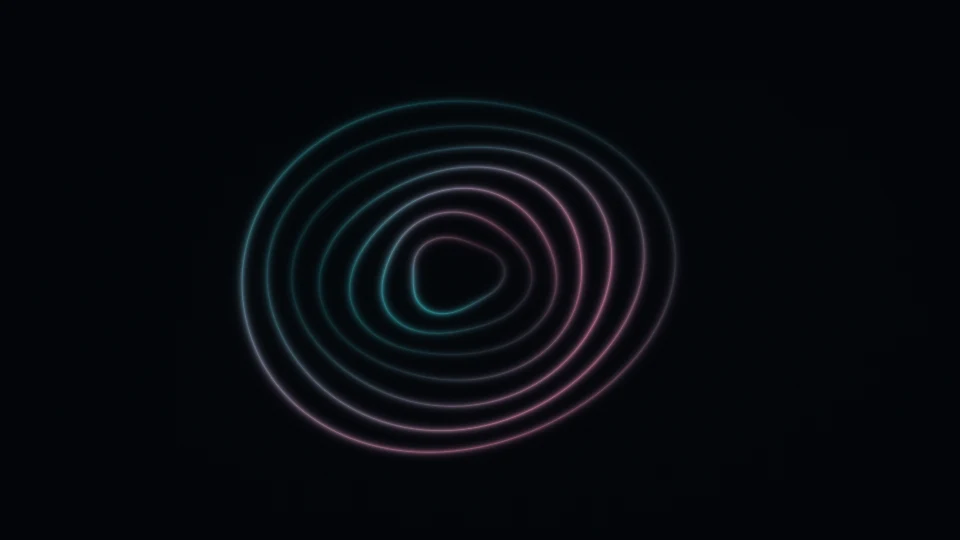
Opal Rings
Pearlescent circles, gently breathing.

Ribbon Waves
Fine threads of light moving as one.
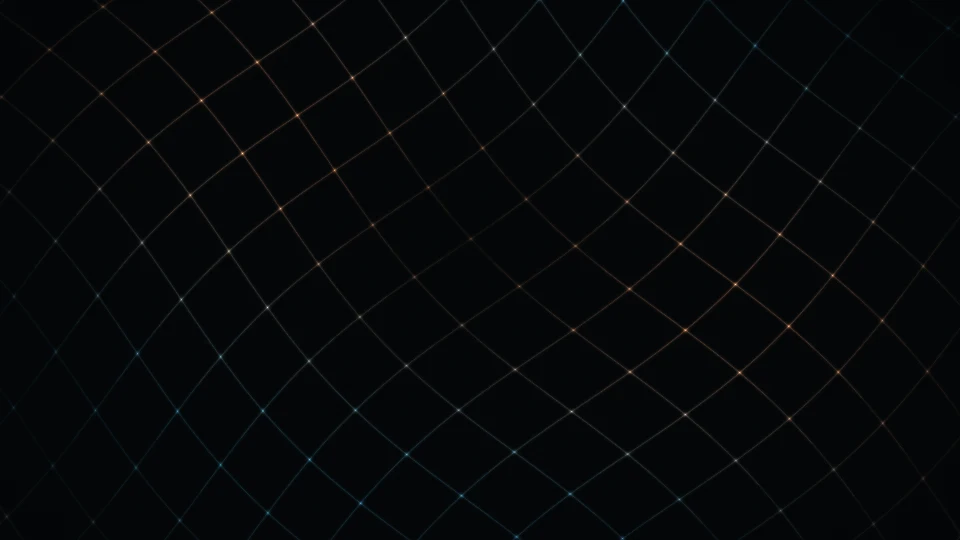
Luminous Lattice
A delicate grid with softly wandering light.
Every scene is drawn live in your browser.
Screensaver videos with music →Looking for the classic DVD bounce? →Screen Test & Utility Tools
Dead Pixel Test: Check Your Screen in 30 Seconds
A dead pixel test is simple: fill the screen with a series of solid colors and look closely. Defective pixels that hide on a busy desktop stand out immediately against a pure, uniform color. Click the preview above to go fullscreen, then click anywhere (or press the arrow keys) to step through white, black, red, green, blue, and more. Press Escape when you are done.
Dead vs. Stuck vs. Hot Pixels
- Dead pixel: stays black on every color. The pixel receives no power - most visible on the white screen.
- Stuck pixel: frozen on one color (often red, green, or blue). It shows up on the solid color screens that do not match its stuck subpixel - visible as a bright dot on black, or a wrong-colored dot on red/green/blue.
- Hot pixel: always white, most visible on the black screen. Common on cameras, rarer on displays.
Step through every color: a defect that appears on only one or two colors is a stuck subpixel, while a dot that is black everywhere is truly dead.
How to Fix a Stuck Pixel
Dead pixels are permanent hardware defects, but stuck pixels sometimes recover:
- Run a color cycle for 10-30 minutes. Rapid color changes can jolt a stuck subpixel back to life - leave this test cycling, or use our glitch screen as an unconventional exerciser.
- Gentle pressure. With the screen off, press very lightly on the spot with a soft cloth, then turn the display on while releasing. Use minimal force - this is at your own risk and not recommended for OLED panels.
- Wait. Some stuck pixels resolve themselves over days of normal use.
Check Warranty Before You Accept Defects
Most manufacturers define a maximum number of allowed defective pixels per panel class (ISO 9241-307). Many premium monitor lines - and most phone brands - replace panels with even a single dead pixel within the warranty window. Run this test the day a new device arrives, and screenshot-document anything you find.
Buying a Used Monitor or Phone?
This page works on any device with a browser - no install, no signup. Open it on the seller's device, run the color cycle fullscreen, and you will know the panel's true condition in under a minute. Pair it with the white screen test to also check for tint, uniformity, and backlight bleed.
Frequently Asked Questions
How do I run the dead pixel test?
Click the preview to go fullscreen, then click anywhere or press the arrow keys to cycle through solid colors. Look closely for dots that stay black or glow the wrong color. Press Escape to exit.
What is the difference between a dead pixel and a stuck pixel?
A dead pixel receives no power and stays black on every color. A stuck pixel is frozen on one color and shows up as a bright or wrong-colored dot on some test colors but not others. Stuck pixels can sometimes be revived; dead pixels are permanent.
Can a dead pixel be fixed?
A truly dead pixel cannot be fixed - it is a hardware defect. A stuck pixel sometimes recovers after running a rapid color-cycling exercise for 10-30 minutes, or occasionally on its own over a few days.
How many dead pixels are acceptable under warranty?
It depends on the manufacturer's pixel policy (based on ISO 9241-307 classes). Many premium monitor and phone brands replace panels with even one dead pixel during the warranty period, so always check your brand's policy and test new devices immediately.
Does this test work on phones and TVs?
Yes. It runs in any browser, so you can test monitors, laptops, phones, tablets, and smart TVs. On a TV, open this page in the TV browser or cast a full-screen color from another device.